
Table of Contents
Introduction: The Hidden Cost of Large PDF Files
If you’ve ever tried to email a proposal, upload a contract to a client portal, or submit tax documents online, you’ve probably seen the dreaded message: “File size exceeds the limit.” Large PDF files slow down workflows, clog inboxes, and create unnecessary friction for businesses.
The good news? You can compress PDFs without losing quality—if you understand how PDF compression actually works and use the right approach.
For U.S.-based professionals and small business owners, efficient document handling is more than convenience. It affects productivity, branding, and even client perception. In this guide, you’ll learn exactly how to reduce PDF file size while preserving clarity, readability, and professionalism.
Why PDF Files Become So Large
Before you attempt to shrink a PDF file, it helps to understand what makes it heavy in the first place.
1. High-Resolution Images
Scanned documents, product catalogs, and marketing brochures often contain images saved at print-level resolution (300 DPI or higher). While ideal for printing, this resolution is excessive for digital sharing.
2. Embedded Fonts
Many PDFs embed full font libraries to preserve formatting. This ensures consistency—but increases file size.
3. Unoptimized Graphics
Design software sometimes exports layered graphics, unused elements, and redundant data into the final file.
4. Excess Metadata
Hidden data, comments, version history, and editing information can inflate your file unnecessarily.
Understanding these elements allows you to apply targeted compression rather than blindly reducing quality.
How to Compress PDFs Without Losing Quality
When people hear “compression,” they assume quality loss is inevitable. That’s not true. High-quality PDF compression relies on optimization—not destruction.
Step 1: Choose the Right PDF Compression Tool
Not all compression tools are created equal. A professional-grade PDF compression tool should allow you to:
- Adjust image resolution settings
- Control compression levels
- Remove hidden metadata
- Optimize fonts and embedded elements
- Preview results before downloading
Avoid tools that only offer “Low,” “Medium,” or “High” compression without transparency. Those typically apply aggressive algorithms that degrade text sharpness and image clarity.
Step 2: Downscale Images Intelligently
If your PDF is meant for:
- Email or web upload → 150 DPI is usually sufficient
- Online viewing only → 96–144 DPI works well
- Professional printing → Keep 300 DPI
Reducing image resolution appropriately can cut file size by 50% or more without visible loss for digital use.
Step 3: Remove Unnecessary Elements
Many PDFs contain:
- Embedded thumbnails
- Form field data
- Hidden layers
- Accessibility tags (if not required)
Removing unused components is one of the safest ways to reduce PDF file size without altering visual quality.
Step 4: Compress Images Using Smart Algorithms
There are two primary compression types:
- Lossless compression: Reduces file size without discarding data. Best for text-heavy documents.
- Lossy compression: Discards minor image details to achieve smaller sizes. Suitable for marketing materials when optimized carefully.
When trying to compress PDFs without losing quality, start with lossless compression. Only move to controlled lossy compression if necessary.
Step 5: Re-Save as Optimized PDF
Many software programs include an “Optimize PDF” or “Reduced Size PDF” export option. This rewrites the internal structure of the document, eliminating redundant data and streamlining file architecture.
Real-World Example: Small Business Proposal
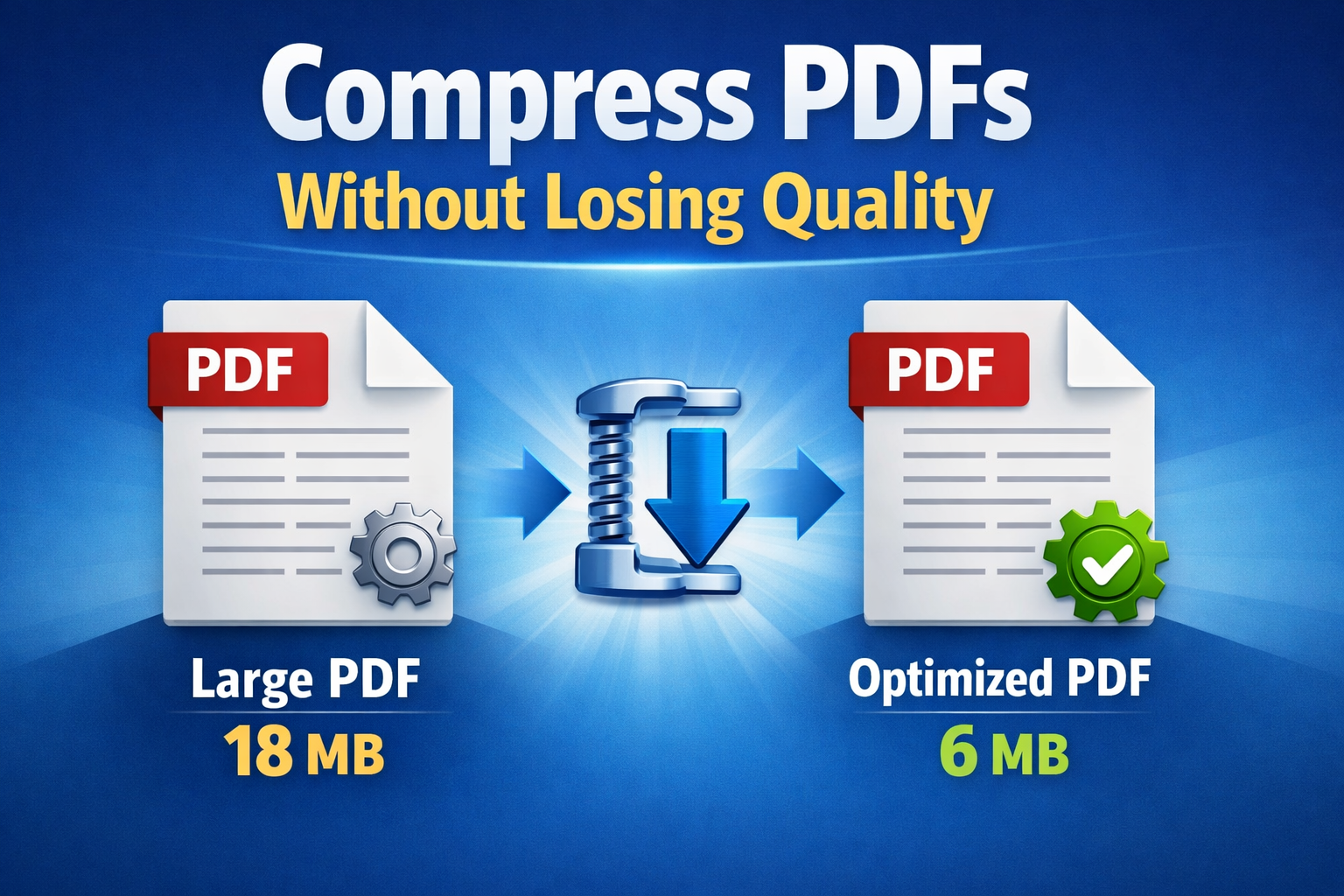
Imagine you run a consulting firm in Texas. You prepare a 25-page proposal including charts, branding elements, and client case studies. The final file is 18MB.
Your client’s email limit? 10MB.
Instead of splitting the document or lowering image quality drastically, you:
- Reduce image DPI from 300 to 150
- Remove unused embedded fonts
- Strip metadata
- Apply moderate lossless compression
The result? A polished 6MB file that looks identical on screen.
That’s what it means to compress PDFs without losing quality strategically.
Best Methods to Shrink PDF File Size
Here’s a comparison of common compression approaches:
| Method | Quality Impact | Ease of Use | Best For |
|---|---|---|---|
| Online compression tool | Low to moderate | Very easy | Quick sharing |
| Desktop PDF software | Minimal (if configured properly) | Moderate | Business documents |
| Re-export from design software | Minimal | Moderate | Marketing files |
| Manual image optimization before export | None to minimal | Advanced | Large graphic-heavy PDFs |
For most small businesses, a trusted online or desktop tool with adjustable settings is the most efficient solution.
When You Should NOT Over-Compress
While reducing file size is important, over-compression can harm your credibility.
Avoid aggressive compression when:
- Submitting legal documents
- Sending contracts requiring signatures
- Delivering print-ready marketing materials
- Providing architectural or technical drawings
Blurry text or pixelated charts reflect poorly on your professionalism.
How to Optimize PDF for Email
Email systems often cap attachments between 10MB and 25MB.
To optimize PDF for email effectively:
- Keep file size under 8–10MB when possible
- Use 150 DPI for images
- Apply lossless compression first
- Remove embedded fonts not in use
- Check readability at 100% zoom
Always test-open the compressed file before sending it to a client.
Advanced Tips for High-Quality PDF Compression
If you frequently handle large documents, consider these professional techniques:
Use Grayscale for Non-Essential Color Images
Color images consume significantly more data. Converting non-critical visuals to grayscale can reduce size dramatically.
Flatten Transparent Layers
Design tools sometimes preserve transparency effects that are unnecessary for final delivery.
Split and Merge Strategically
For extremely large documents (50MB+), compress sections individually before merging them back together.
Audit Before Sharing
Open the final compressed file on:
- Desktop computer
- Mobile device
- Tablet
Ensure text remains crisp and charts remain legible.
Common Mistakes to Avoid
When attempting to reduce PDF file size, many users:
- Use maximum compression blindly
- Forget to remove hidden metadata
- Ignore image resolution differences
- Fail to review the final file
The goal isn’t the smallest file possible. The goal is the most efficient file without sacrificing quality.
Final Thoughts: Compress PDFs Without Losing Quality the Smart Way
Learning how to compress PDFs without losing quality gives you a clear operational advantage. Smaller files upload faster, send easily, and create smoother client experiences—without compromising professionalism.
By choosing the right PDF compression tool, adjusting image resolution intelligently, and removing unnecessary elements, you can consistently reduce file size while maintaining clarity.
If you regularly handle contracts, invoices, proposals, or reports, mastering high-quality PDF compression isn’t optional—it’s essential.
Start optimizing your documents today and experience how efficient file management can simplify your workflow and strengthen your brand presence.
Explore More Useful Resources: